Are you looking for an innovative way to accelerate your progress with a new language? Whether you’re a teacher creating materials or a student eager to learn faster, the capabilities of Google Gemini for language learning offer a powerful, interactive, and highly efficient solution. In this guide, inspired by the extensive testing and insights from Russell Stannard of TeacherTrainingVideos.com, we will unveil three game-changing tricks. You’ll learn how to generate custom reading and listening materials, master vocabulary, and even create digital flashcards in mere seconds. Let’s dive in!
1. Generate Custom Texts and Add Audio Instantly
The foundation of language learning is exposure to authentic material. While tools like ChatGPT and Microsoft Copilot can also perform these tasks, Google Gemini’s integration and voice command feature make it particularly user-friendly for this purpose. You can generate rich texts tailored precisely to your needs and then convert them into listening exercises.
Crafting the Perfect Prompt in Gemini
The key to success with Google Gemini for language learning is effective prompting. Don’t be afraid to be specific. Instead of a generic request, provide clear parameters. You can even use Gemini’s built-in microphone to speak your prompt naturally.
Specify the Language: State the target language for the output (e.g., “in Polish,” “in French”).
Define the Topic: Choose a subject that interests you to make learning more engaging (e.g., “the Polish football league system”).
Set the Proficiency Level: Use the Common European Framework of Reference for Languages (CEFR) to tailor the difficulty (e.g., “at level B1”).
Control the Length: Set a word count to keep the text manageable (e.g., “about 500 words long”).
For example, Russell Stannard used the voice prompt: “Can you produce for me a text in Polish about the Polish football system… at level B1 of Polish? My level of Polish is B1… and can you make the text about 500 words long?”
From Text to Audio with NaturalReader
Once Gemini generates your text, you can transform it into a powerful listening tool. While Gemini itself can read text, an external tool offers more control and features.
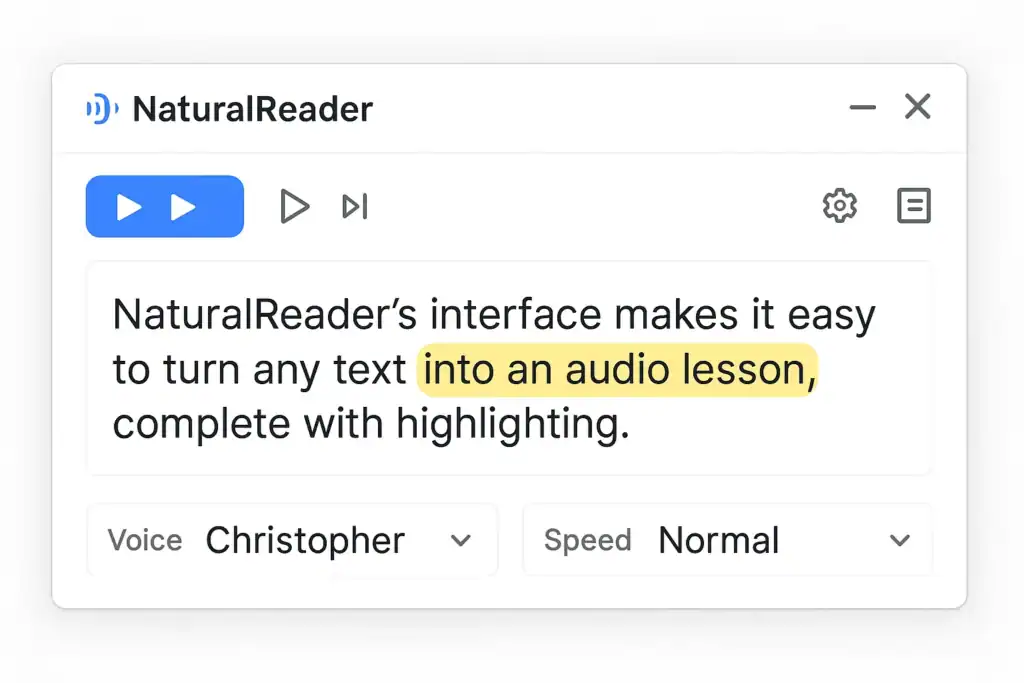
A fantastic—and free—tool for this is NaturalReader. Simply copy the text from Gemini and paste it into NaturalReader. You can then:
Select the correct language and voice.
Press play to listen to a native-sounding pronunciation of the entire text.
Follow along as the tool highlights the words as they are spoken, connecting your reading and listening skills.
NaturalReader’s interface makes it easy to turn any text into an audio lesson, complete with highlighting.
2. Master Vocabulary with Targeted Prompts
Beyond simply generating content, Gemini can help you deconstruct it for deeper learning. Once you have your base text, you can ask Gemini to create a variety of vocabulary-building exercises from it.
Cloze Tests (Gap-Fill): Ask Gemini, “Can you take the text you generated for me and turn it into a cloze test? Please take out 10 keywords.” This creates an active recall exercise, forcing you to remember the vocabulary in context.
Extract Key Phrases: For more conversational fluency, prompt Gemini to “extract from the text 10 really common phrases that would be useful for me to learn.” This focuses on how words are used together naturally.
Vocabulary Lists: Simply ask Gemini to “extract 10 of the most important words that I would need to study to help me understand the text.” You can then paste this list into NaturalReader to practice pronunciation before tackling the full text.
Internal Link Suggestion: These vocabulary methods are a great example of practical AI applications you can explore further in our AI How-To’s & Tricks section.
3. The Ultimate Trick: Create Instant Quizlet Flashcards with Gemini
This final trick is where using Google Gemini for language learning truly becomes magical. You can generate perfectly formatted data to create a complete set of interactive flashcards on Quizlet in under a minute.
The Magic Prompt for Flashcard Generation
The secret is asking Gemini to structure the output in a table format that Quizlet can understand. The prompt is everything:
“Can you produce for me a set of flashcards? I want 10 different names for typical shops in Polish and a definition in Polish of the shop. Can you put that into a table for me so I’ve got the shops on the left-hand side and the definitions on the right?”
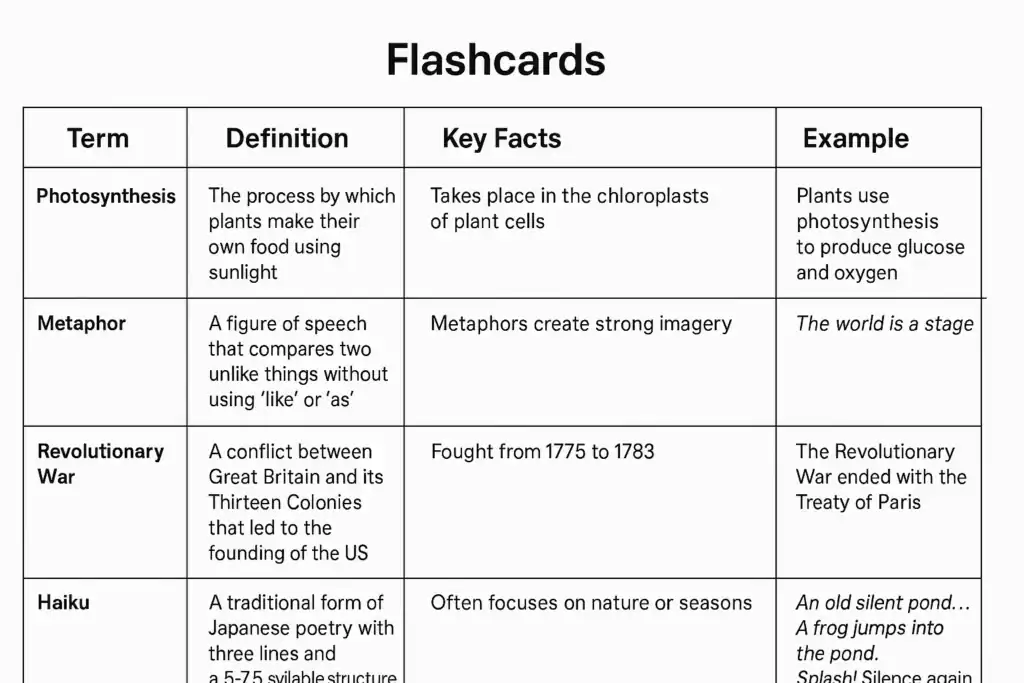
Gemini will produce a clean, two-column table. You could ask for a translation in the second column or, for more advanced practice, a definition in the target language as shown in the prompt.
Gemini’s ability to generate structured data like this table is key to creating flashcards quickly.
Importing into Quizlet in Seconds
Now for the easy part:
Highlight and copy the entire table generated by Gemini.
Go to Quizlet and click the “+” button to create a new flashcard set.
Instead of typing manually, click the “Import” button.
Paste your copied text into the box. Quizlet will automatically recognize the columns as “Term” and “Definition.”
Click “Import,” and your flashcard set is created instantly!
Pro Tip: Once created, click on the first flashcard and then the settings icon. Ensure the language is set correctly (e.g., to Polish) so you can use Quizlet’s text-to-speech feature to hear the pronunciation of every card.
Click “Create” to save your set. Now you have a fully interactive study set with audio, ready for learning, testing, and matching games.
By combining the content generation power of Google Gemini with the functionality of tools like NaturalReader and Quizlet, you can create a personalized, dynamic, and incredibly effective language learning ecosystem. Give these tricks a try and watch your skills soar!
The concept of intelligence ownership has been gaining traction in recent years, and for good reason. As Cisco has demonstrated, owning intelligence rather than renting it can be a game-changer for enterprises looking to scale their operations securely. According to a recent article by The Rundown AI, Cisco’s strategy to scale agents securely and reshape enterprise workflows is a prime example of this shift.
The Importance of Intelligence Ownership
Owning intelligence means having control over the data, algorithms, and insights that drive business decisions. This is particularly crucial in today’s fast-paced, data-driven world, where artificial intelligence and machine learning are becoming increasingly prevalent. By owning their intelligence, enterprises can ensure that their systems are secure, transparent, and aligned with their overall goals.
Scaling Agents Securely with Cisco
Cisco’s approach to scaling agents securely is centered around the idea of intelligence ownership. By developing and owning their own AI-powered agents, Cisco is able to ensure that their systems are secure, efficient, and tailored to their specific needs. This approach has allowed Cisco to reshape their enterprise workflows and improve overall productivity. As AWS and other cloud providers continue to evolve, the importance of owning intelligence will only continue to grow.
Cisco’s strategy is a great example of how owning intelligence can help enterprises scale their operations securely and efficiently. By taking control of their data and algorithms, companies can ensure that their systems are aligned with their overall goals and values.
The Benefits of Owning Intelligence
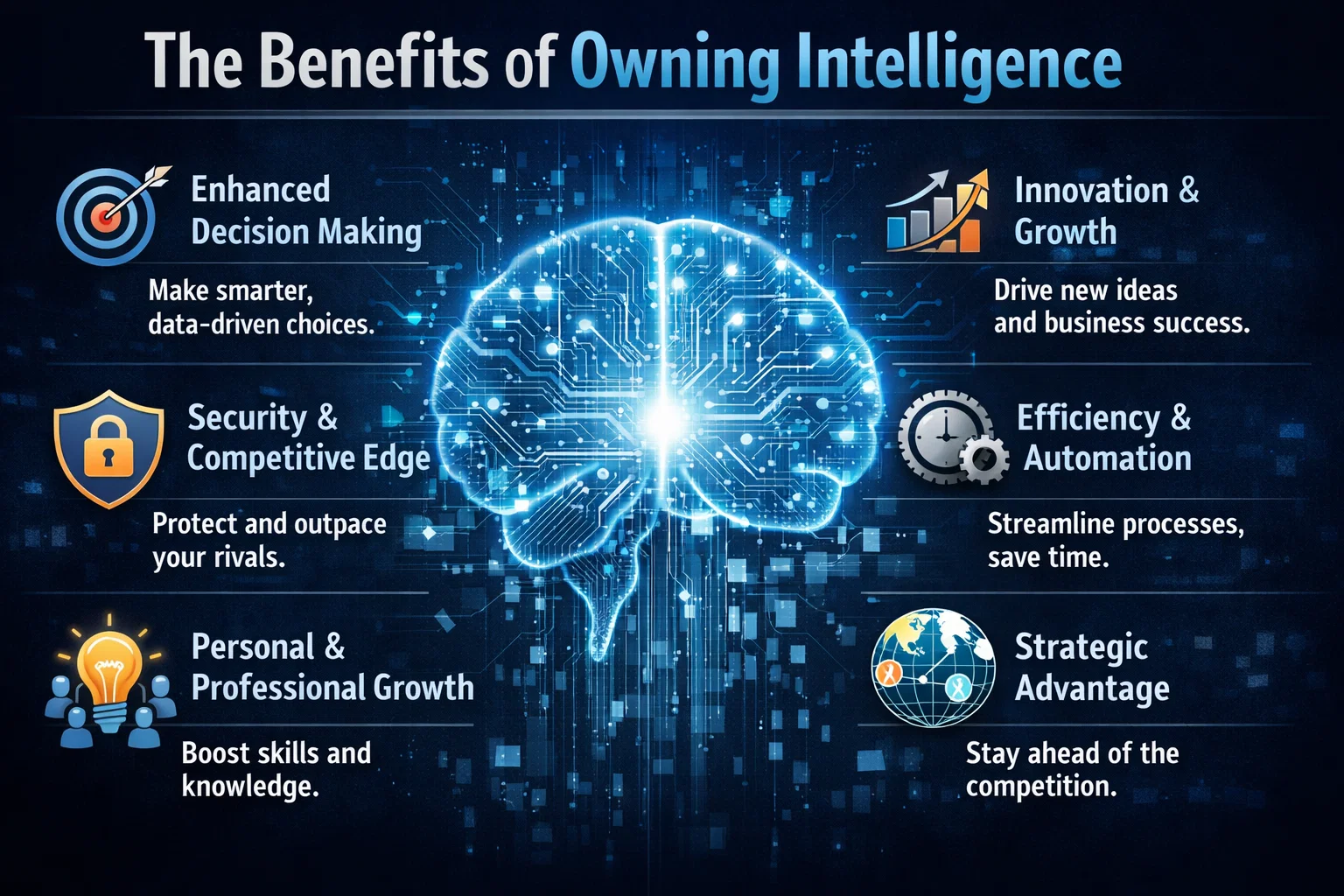
So why should enterprises prioritize intelligence ownership? The benefits are numerous. For one, owning intelligence provides a level of control and transparency that is difficult to achieve with rented intelligence. It also allows enterprises to develop systems that are tailored to their specific needs and goals, rather than relying on generic, off-the-shelf solutions. Additionally, owning intelligence can help enterprises to improve their overall security posture, as they are able to develop and implement their own security protocols and measures.
In contrast, rented intelligence can be limiting and inflexible. When enterprises rely on rented intelligence, they are often at the mercy of the provider, with limited control over the data, algorithms, and insights that drive their business decisions. This can lead to a lack of transparency, security risks, and a general sense of disempowerment.
Real-World Applications
So what does intelligence ownership look like in practice? One example is the development of custom GitHub repositories, which allow enterprises to own and control their code and data. Another example is the use of Azure and other cloud platforms to develop and deploy custom AI-powered solutions. By taking control of their intelligence, enterprises can develop systems that are tailored to their specific needs and goals, and that provide a level of security, transparency, and efficiency that is difficult to achieve with rented intelligence.
The recent launch of the Cursor plugin marketplace is a significant development in the field of artificial intelligence, enabling users to extend the capabilities of AI agents with external tools. As reported by FutureTools News, this innovative platform is set to transform the way AI agents are used in various industries. The plugin marketplace is designed to provide users with a wide range of tools and services that can be seamlessly integrated with AI agents, enhancing their functionality and performance.
Introduction to Cursor Plugin Marketplace
The Cursor plugin marketplace is an online platform that allows developers to create, share, and deploy plugins for AI agents. These plugins can be used to add new features, improve existing ones, or even create entirely new applications. With the launch of this marketplace, Cursor is providing a unique opportunity for developers to showcase their skills and creativity, while also contributing to the growth of the AI ecosystem. As mentioned on the Cursor blog, the plugin marketplace is an essential component of the company’s strategy to make AI more accessible and user-friendly.
Benefits of the Plugin Marketplace
The Cursor plugin marketplace offers several benefits to users, including the ability to extend the capabilities of AI agents, improve their performance and efficiency, and enhance their overall user experience. By providing access to a wide range of plugins, the marketplace enables users to tailor their AI agents to meet specific needs and requirements. This can be particularly useful in industries such as customer service, healthcare, and finance, where AI agents are increasingly being used to automate tasks and improve decision-making. As noted by experts in the field, the use of machine learning and natural language processing can significantly enhance the capabilities of AI agents.
Key Features of the Plugin Marketplace
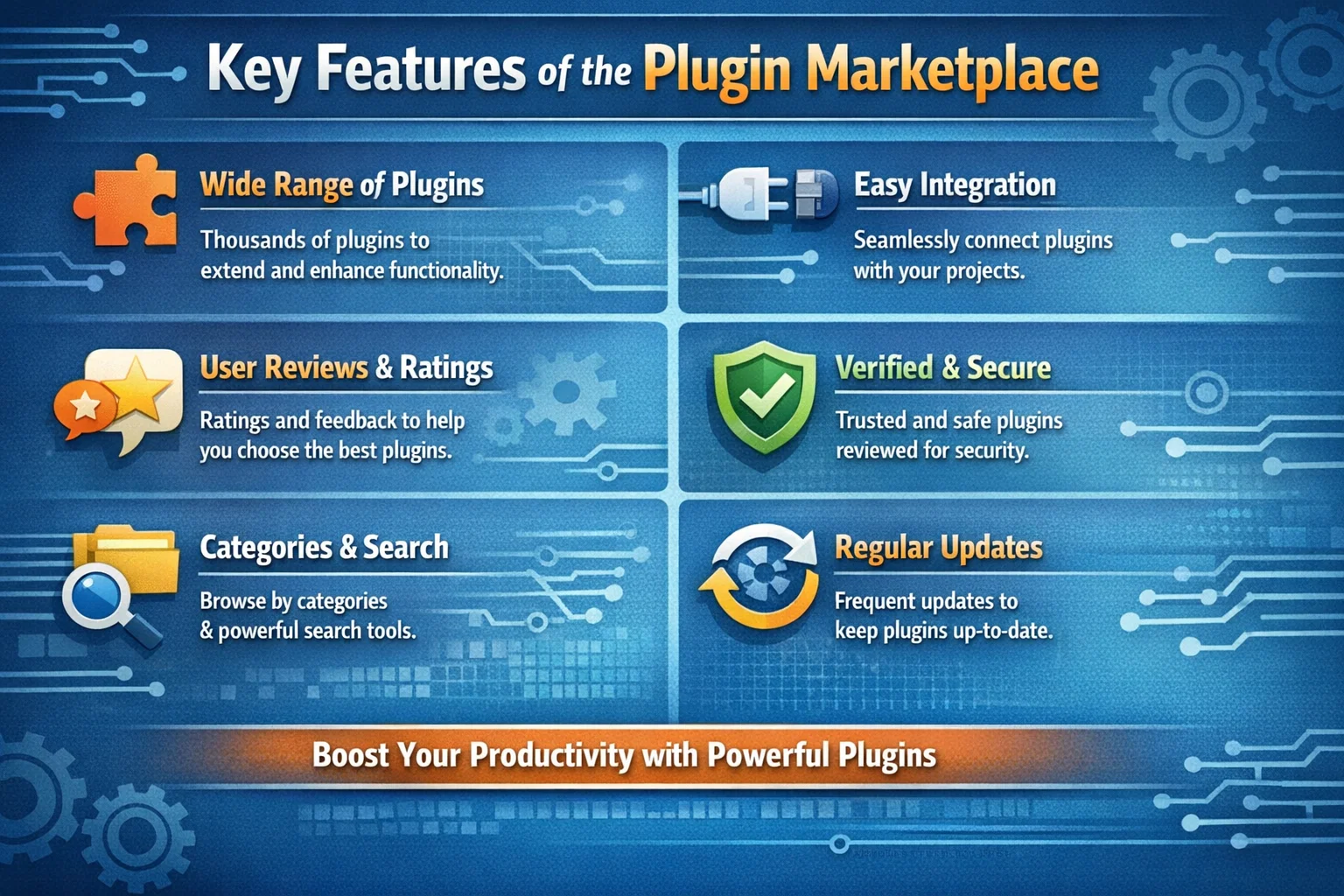
The Cursor plugin marketplace features a user-friendly interface, making it easy for developers to create, deploy, and manage plugins. The platform also provides a range of tools and services, including APIs, SDKs, and documentation, to support plugin development. Additionally, the marketplace includes a review and rating system, allowing users to evaluate and compare plugins based on their quality, functionality, and performance. As stated by the GitHub community, the use of open-source plugins can significantly accelerate the development of AI applications.
The launch of the Cursor plugin marketplace is a significant milestone in the development of AI agents, and we are excited to see the innovative plugins that will be created by our community of developers. – Cursor Team
Future of AI Agents and Plugin Marketplaces
The launch of the Cursor plugin marketplace is a clear indication of the growing importance of AI agents and plugin marketplaces in the technology industry. As AI continues to evolve and improve, we can expect to see more innovative applications and use cases emerge. The use of cognitive services and conversational AI can significantly enhance the capabilities of AI agents, enabling them to interact more effectively with humans and perform complex tasks. As reported by FutureTools News, the future of AI agents and plugin marketplaces looks promising, with significant opportunities for growth and innovation.
Ever wondered if you could take a scene from your favorite movie and seamlessly swap out the main character for someone entirely new, just using a single reference image? Thanks to the incredible advancements in generative AI, this is no longer science fiction. In this guide, we’ll explore the amazing capabilities of MoCha AI, a free and open-source tool that offers end-to-end video character replacement with stunning accuracy.
Swap any character in an existing video with a new one using a single reference image.
Developed by the “Orange Team,” MoCha AI is a powerful new framework that stands out for its ability to create high-quality, consistent character replacements without needing complex structural guidance. Let’s dive into what makes it so special and how you can use it yourself.
MoCha AI is a free, open-source AI tool designed to replace any character in an existing video using just a single reference image of a new character. Its advanced model is capable of capturing and transferring complex motions with incredible detail. The key features include:
Full Body Motion Transfer: It perfectly matches the movements of the original character, including subtle hand gestures and body language.
Facial & Lip Sync Fidelity: The new character’s facial expressions and lip movements are synchronized with the original audio and performance.
Seamless Integration: MoCha AI excels at matching the white balance, lighting, and colors of the original video. This ensures the new character blends into the scene naturally, avoiding the “pasted-on” look that other tools can produce.
Intelligent Segmentation: The tool is smart enough to identify and replace only the target character, leaving other elements like background scenery and even subtitles completely untouched.
How MoCha AI Stacks Up Against Competitors
While similar tools like Wan Animate and Kling also offer character animation, the video highlights several areas where MoCha AI demonstrates superior performance. In side-by-side comparisons, MoCha consistently produces more realistic and better-integrated results.
MoCha (labeled “Ours”) shows better color and lighting consistency compared to Kling and Wan-Animate.
The primary advantage is its ability to preserve the original scene’s color and lighting. In several examples, including a tricky scene with a moving lightbulb, MoCha’s output looks far more natural. The character feels like they are truly in the environment, whereas results from other models can appear washed out or poorly lit.
Furthermore, MoCha AI handles unconventional characters, like those wearing masks, much more effectively. In one test, Wan Animate failed to generate the masked character properly, while MoCha inserted it seamlessly, retaining all the details from the reference photo.
For those interested in exploring other powerful video manipulation tools, check out our comprehensive reviews in the AI Tools & Reviews category.
Getting Started: How to Install and Use MoCha AI with ComfyUI
The easiest way to run MoCha AI locally is through ComfyUI, a popular node-based interface for generative AI models. The video uses a custom wrapper node that makes the process straightforward.
Step 1: Install the WanVideoWrapper for ComfyUI
This entire workflow runs on the “ComfyUI-WanVideoWrapper,” a custom node developed by user Kijai. If you haven’t already, you need to install it in your ComfyUI’s custom_nodes folder. You can do this by cloning the repository from GitHub.
Once cloned, you’ll need to install its dependencies. If you use the portable version of ComfyUI, you can run the following command in your ComfyUI_windows_portable folder:
MoCha requires several models to function correctly. The workflow file handily includes the links, but here’s what you need:
The MoCha AI Model: The original model is quite large. Thankfully, there is a quantized FP8 version available which is smaller (around 14.3 GB) and works well for consumer GPUs. Download this and place it in your ComfyUI/models/diffusion_models/ folder.
VAE & Text Encoder: You’ll also need the Wan2.1 VAE and a UMT5 text encoder. Place the VAE in the ComfyUI/models/vae/ folder and the text encoder in the ComfyUI/models/text_encoders/ folder.
(Optional) LightX2v Model: To dramatically speed up generation, it’s highly recommended to download the LightX2v LoRA model. This can reduce the required steps from 20-30 down to just 6. Place this file in the ComfyUI/models/loras/ folder.
Step 3: Set Up the Workflow
Once all models are downloaded and placed in the correct folders, restart ComfyUI. Drag and drop the MoCha workflow JSON file onto the interface to load it. Now you can start setting up your generation!
Load Your Video: In the “Load Reference Video” node, upload the video you want to edit.
Create a Mask: The first step is to generate a segmentation mask to tell the AI which character to replace. The workflow guides you through this; you use green dots to select parts of the character and red dots to select parts of the background (or objects to exclude). This helps create an accurate mask.
Load Your Reference Image: Upload the image of the new character you want to insert into the video. For best results, use an image with a clean, simple background.
Generate! With everything set up, you can run the workflow. The MoCha AI will process the video frame by frame, replacing the original character with your new one while matching the motion and lighting.
The process can take some time depending on your hardware and video length, but the results are truly impressive, capturing everything from hand gestures to reflections on surfaces.
To dive deeper into the technical aspects or contribute to the project, you can visit the official MoCha AI GitHub page.
Final Thoughts: The Future of AI Video Editing
MoCha AI represents a significant leap forward for open-source character replacement tools. Its ability to create seamless, high-fidelity results opens up a world of creative possibilities for filmmakers, content creators, and AI enthusiasts. By leveraging the power of ComfyUI, it’s more accessible than ever to experiment with this cutting-edge technology right on your own computer. This is without a doubt one of the best character transfer tools available today.